
Before opening InboxAI
Install only the official v0.1.4 build, compare its SHA-256 checksum and keep your licence information private.
- Confirm the installerVerify the filename and checksum against the official release record.
- Open the installed applicationLaunch InboxAI from the Start menu or Applications folder.
- Review the activation screenEnter only the licence details issued for your organisation.
- Complete device registrationAllow the authorised device to be associated with the licence.
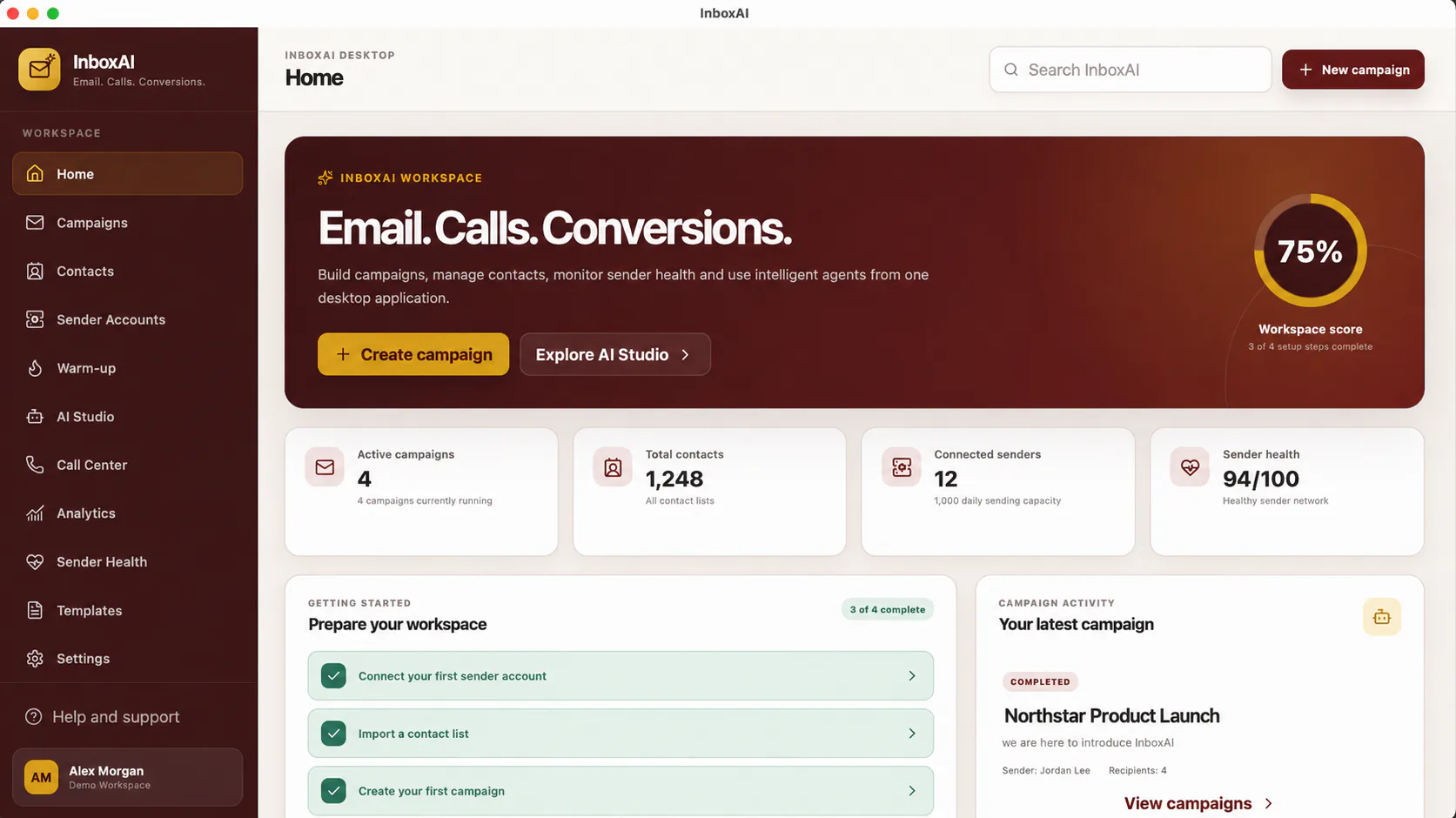
- Open the workspaceConfirm that navigation, local storage and the home screen load normally.
Protect your licence
A licence key is confidential business information. Do not place it in screenshots, support messages, public repositories or shared documents.
!
Never share secrets with support
InboxAI support should not request passwords, OAuth tokens, SMTP passwords, recovery codes or complete licence secrets.
When activation does not complete
Confirm that the computer is online, the licence has not expired, the device limit has not been reached and the system date and time are correct. Record the exact message and contact support without sending credentials.
NEED MORE HELP?
Contact InboxAI support.
Share the exact issue and a sanitised screenshot. Never include passwords, tokens or full licence keys.